5 Clipboard Workflows That Save Hours
Five practical clipboard workflows for developers and knowledge workers: cross-device handoff, reusable snippets, quick transforms, searchable history, and directed team sharing.
Productivity advice gets weirdly abstract the moment it reaches clipboard tools. You hear phrases like save time, move faster, and streamline your workflow, but not many people spell out the exact moments where a better clipboard changes the shape of a workday.
We wanted this post to stay concrete. If you have already read Why We Built Cliprift, you know we think the category has a trust problem before it has a feature problem. A clipboard only becomes useful when you believe it will still be there later. Once that baseline exists, the real value shows up in the daily loops you stop repeating.
These are five workflows we keep coming back to. None of them require a huge mental model. They are small, repeatable habits that turn copied text, links, snippets, and notes into something more durable than a temporary buffer. Several are available on the free plan. A few become dramatically better with Pro because unlimited history, quick transforms, snippets, and team workflows remove the usual friction.
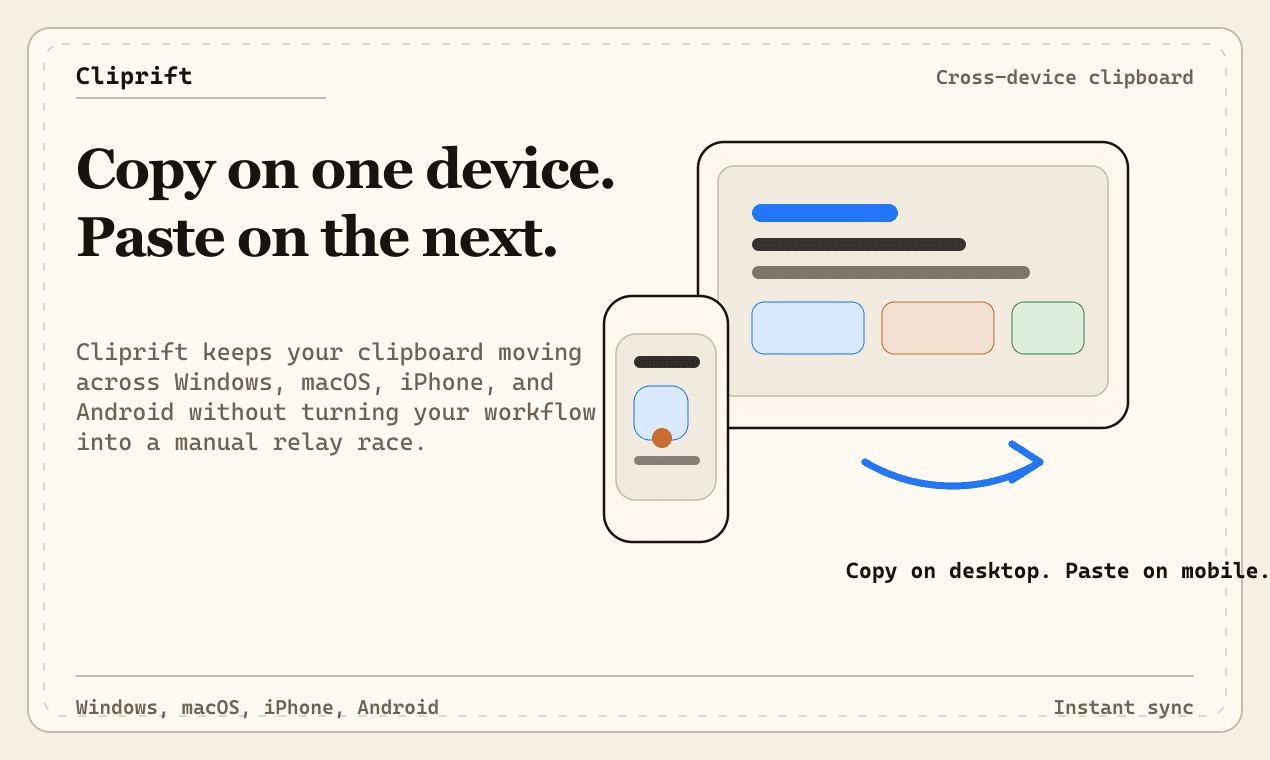
The first workflow is the simplest: stop using Slack, iMessage, Notes, or email drafts as a bridge between devices. If you copy a deployment URL on your work laptop, a two-factor backup code on your phone, or a support snippet on your home machine, the fastest next step should be to paste it on the device you are currently using. Not to send it to yourself. Not to save it in a temporary note. Just paste.
That sounds obvious, but a lot of people have quietly normalized terrible workarounds. They keep a personal chat open as a transfer tunnel. They open a blank document named scratch. They leave tabs pinned because they do not trust that copied text will survive the device switch. Each workaround feels tiny, but repeated twenty times a day it becomes constant background drag.
The better loop is: copy once, switch devices, paste once. If you are setting Cliprift up for the first time, the gets you from install to your first cross-device sync quickly. Once that is in place, the workflow disappears into muscle memory. The copied item is simply there when you need it.
This is the workflow that makes every other one possible because it removes the need for manual transfer rituals. You stop thinking in terms of this link lives on my laptop and start thinking in terms of my clipboard follows me. It is not flashy. It is foundational.
The second workflow is for anyone who types the same shape of message more than twice a week. Customer support replies. QA handoff notes. Bug-report templates. Meeting follow-ups. API onboarding instructions. Demo links with a short explanation attached. If you have ever found yourself digging through old messages just to copy your own words back out again, you are already doing snippet work manually.
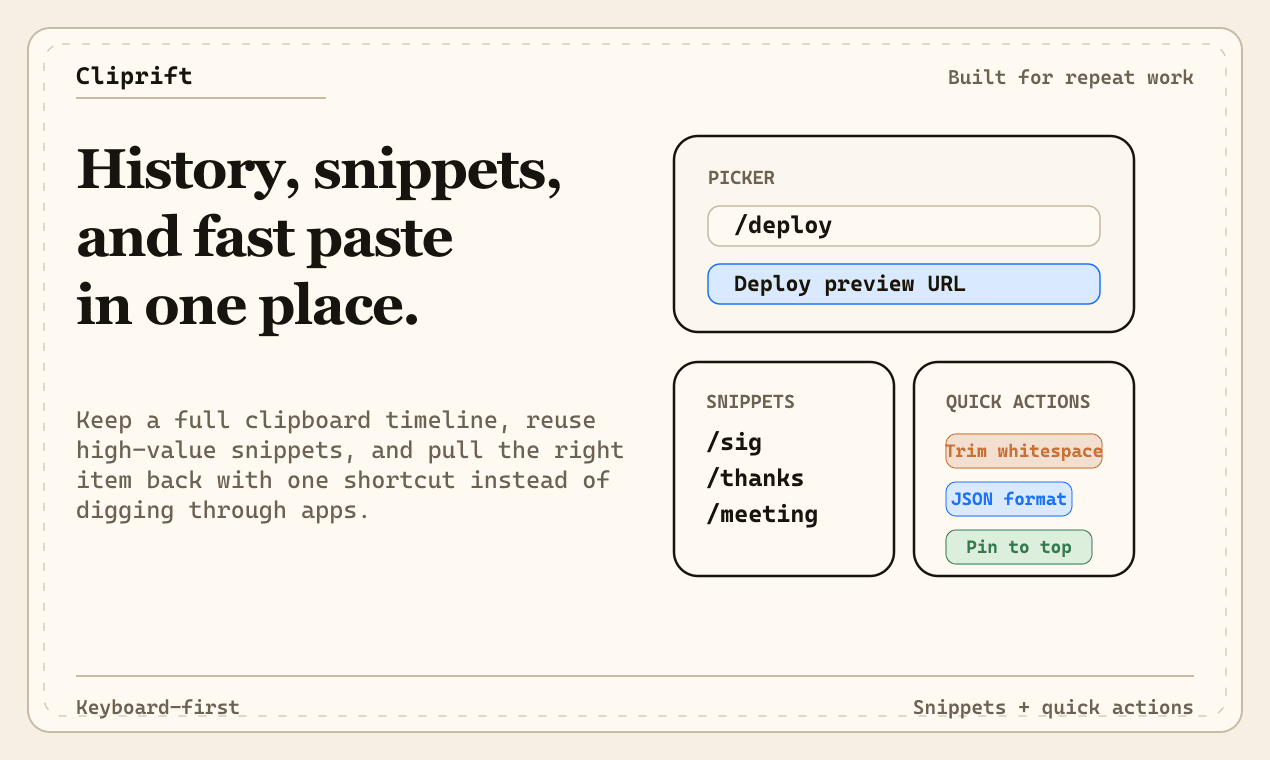
A saved snippet turns that repetition into a keyword. Instead of hunting for the last time you wrote the answer, you create it once and call it up on demand. Cliprift's covers the mechanics, but the practical value is simple: recurring writing stops competing with your attention. You can spend your brain on the part that actually changes instead of the boilerplate around it.
This gets better when the snippet includes template variables. A support macro can include the date. A status update can include a UUID. A handoff can pull in the current clipboard content. A recruiting reply can keep the same structure while leaving room for one customized sentence at the top. Suddenly the workflow is not copy and tweak. It is type a keyword, expand, and move on.
Snippets are available on every plan, but Pro removes the cap so the system can grow with your job instead of forcing you to prune the good stuff. That matters more than it sounds. Teams and power users do not just need a few canned lines. They accumulate onboarding checklists, incident templates, code-review nudges, sales follow-ups, launch copy, and internal process fragments that would otherwise be scattered across docs and chat history.
The point is not only speed. It is consistency. When the same answer is sent twelve times by three different people, a good snippet library protects tone and accuracy as much as it protects time.
The third workflow shows up every time copied content arrives almost right. Maybe a JSON blob needs formatting before you drop it into a bug report. Maybe a list from a spreadsheet needs deduping. Maybe a URL is full of tracking parameters. Maybe a code fragment needs quick casing changes before it goes into a config file. The problem is usually too small to justify opening another utility, but still annoying enough to slow the handoff.
That is where quick transforms earn their keep. The and snippets docs both cover the built-in actions, but the practical workflow is what matters: inspect the item, clean it in place, paste the corrected version, keep going. No context switch to an online formatter. No side trip to a text editor just to trim whitespace or decode a URL.
This is one of the clearest Pro moments in Cliprift because transforms are not a novelty feature. They compress the tiny repair steps that make copied content usable in the real world. One transform is not dramatic. Twenty a day is real reclaimed time. More importantly, the output is cleaned before it lands in your ticket, terminal, CMS, or customer reply, which means you avoid dragging junk formatting into the next system.
Good workflows remove preventable friction at the seam between tools. Quick transforms are exactly that: seam work. They keep momentum intact when what you copied is close, but not ready yet.
The fourth workflow is less about one moment and more about long-tail recall. You copied a staging link on Monday. A customer quote yesterday. A shell command two weeks ago. A color value from a design review. A Zoom invite you know you used recently but do not want to ask for again. Most people respond by searching five different apps or retracing their steps manually.
Searchable clipboard history changes that pattern. Instead of asking where did I paste this last, you ask when did I copy it. The cover filters, pinning, and keyboard shortcuts, but the bigger mental shift is that your clipboard becomes a reliable retrieval layer, not a vanishing strip of state between two actions.
Pinning matters because not everything in history should be treated equally. Some items are true reference material: SSH commands, recurring dashboard links, staging credentials that need short retention, approved boilerplate, launch assets, or the exact sentence your team uses to describe a feature. Pinning turns those from something you hope search will find into something you can deliberately keep visible.
This is where unlimited history becomes a meaningful Pro upgrade instead of a plan-table talking point. If you rely on clipboard history as a working memory layer, 100 items disappears fast. Unlimited history means you can trust the archive to stay useful instead of constantly dropping older context right when you need it most. The lays out the plan difference clearly, but the real test is whether your search habit becomes more aggressive because you believe the answer is still there.
Search plus pinning is one of those combinations that quietly compounds. The more you use it, the less you reopen tabs just in case, the less you keep duplicate notes, and the less you depend on memory for things your tools should remember for you.
The fifth workflow is about directed handoff. Sometimes a copied item should not just exist everywhere. It should go somewhere specific. A URL needs to move from your phone to your desktop. A test credential needs to land on the device you are actively debugging. A teammate needs the final copy block, not the whole chat leading up to it. A support engineer needs the exact snippet with attribution, not a paraphrased retelling.
That is where cross-device targeting and shared workflows become more than convenience features. The describes the product direction here: team clipboards, device presence, push-to-device, and real-time sync that make the clipboard feel less like a private scratchpad and more like a fast distribution layer for small but important pieces of work.
This is another strong Pro showcase because collaboration friction is rarely about giant documents. It is usually about one link, one token, one code sample, one corrected sentence, one launch asset, one answer. When those small items move cleanly with source context and without manual reformatting, the rest of the workflow gets smoother too. You are not reopening the same thread to figure out which version was final. You are moving the exact item itself.
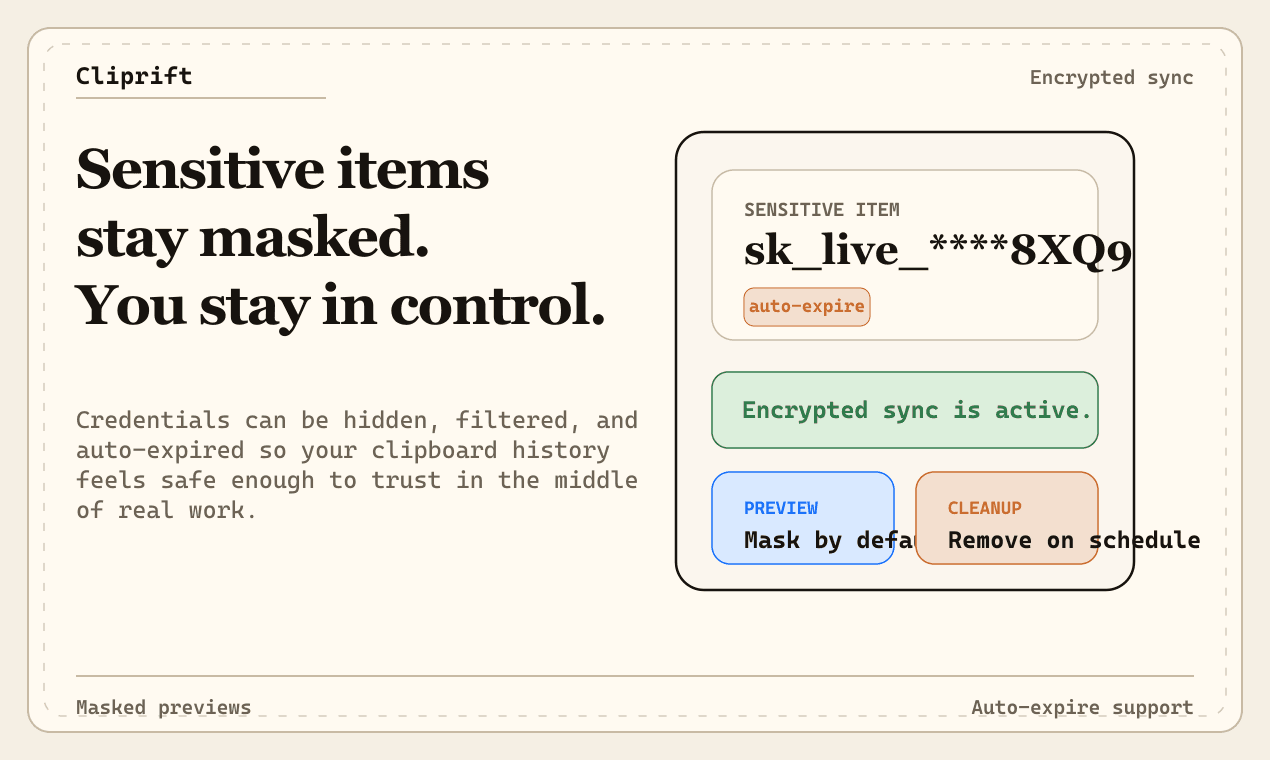
And if trust is the first requirement for any clipboard product, it still applies here. If you want the deeper thinking behind that standard, read . A workflow only saves time when users believe the system handling copied data is taking that responsibility seriously.
None of these workflows is life-changing on its own. That is exactly why they matter. The most expensive productivity losses are often the ones too small to justify a dedicated fix in the moment. Re-copying an old answer. Cleaning a URL. Looking for a command you know you had. Pasting through a personal chat. Rebuilding context that already existed ten minutes ago. Each step is minor. Together they eat real hours.
What we want from a clipboard product is not a bigger pile of features. We want fewer repeated actions between intent and paste. These five workflows all do the same thing from different angles: they reduce the number of times you have to recover, reconstruct, or resend information that was already in your hands once.
If you want to try the baseline flow, and set it up in under a minute. If you already know you want unlimited history, quick transforms, larger snippet libraries, and advanced cross-device workflows, review and pick the plan that matches how you work. Either way, the goal is the same: copy less often, recover faster, and stop letting temporary clipboard state dictate how your day is organized.
Try Cliprift Free
Copy on one device, paste on another. Searchable history, smart detection, and instant sync across all your devices.